
Blog
Information on JSQ, LLC's projects and products including DianHua Dictionary for iOS
LianXiShuZi v0.1 Available on the AppStore
I was caught completely by surprise tonight when I received the “Ready for Sale” e-mail for LianXiShuZi. Being so close to Thanksgiving, I figured I would be waiting a while for it to become available. I’m hopeful folks find it as useful as I have while developing and testing it. If you have any questions, comments, or concerns, please let me know.
LianXiShuZi Now Available on the App Store
LianXiShuZi (“Practice Numbers”) is now available on the iTunes App Store. LianXiShuZi helps you practice reading, writing, and listening to Chinese numbers. You can find more information by following the LianXiShuZi link.
DianHua Dictionary: Limiting Results to Improve Performance
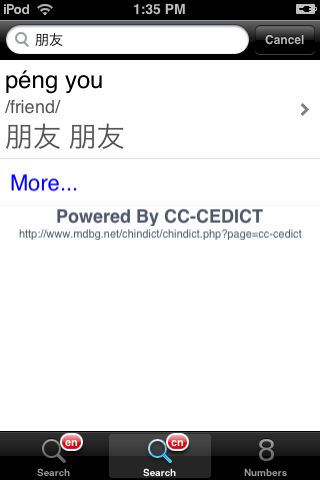
While I wait on LianXiShuZi to be approved and continue developing another learning application, I thought I’d take some time to make some improvements to DianHua Dictionary. Today I experimented with limiting search results to exact matches to see what the performance difference might be. Most searches are at least twice as fast so this feature will make it into the next version of DianHua Dictionary. In cases where an exact search doesn’t yield the desired results, you can activate the normal exhaustive search using the “More…” item at the end of the list of results.
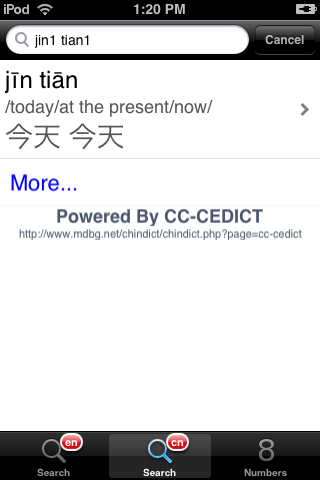
Where this feature pays off the most is in searches for traditional or simplified characters. Instead of an exact match in that case, I allowed 2 character results to be displayed when only one character is included in the search term. The speed improvements are more dramatic than English and Pinyin searches, and the results are more useful.
LianXiShuZi: Practice Chinese Numbers


Numbers are an essential component of becoming fluent in any language. For the most part, learning numbers in Chinese is much simpler than many other languages as all of the numbers from 0-99 are based on the numbers 0-9. Beyond 99, however, things become a little more complicated, and you have the further challenge of learning the written form. LianXiShuZi is designed to help you practice Reading, Writing, and Listening to numbers until each exercise becomes automatic.
 |
Practice ListeningIn the listening exercise, a native Chinese speaker reads numbers randomly within a pre-defined range configurable by you. Your task is to enter the numerical equivalent in the entry field. After you touch “Go”, the application will tell you whether your entry is correct or incorrect. When you type, the system shows the equivalent Simplified Chinese characters for the number in the entry field. You can use this tool to help you learn characters for the Reading and Writing exercises. From 0-100, the numbers you hear are recorded as one unit. Beyond 100, most numbers are assembled from several smaller recordings. This means that the pace may not exactly match a native speaker, and there may be some incorrect tones used with “Yī” since the tone changes under certain circumstances. If you want to change the range of numbers, touch anywhere outside the entry field to see the Min and Max fields behind the keyboard. Change them as needed and use the Skip button to move to a number within the range. If you weren’t able to hear a number on the first reading, use the Replay button. If you can’t figure out a number, use the Cheat button to see the answer.
|
 |
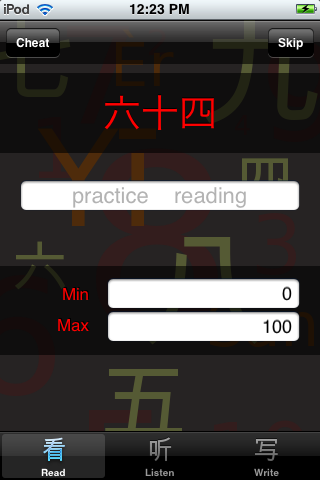
Practice ReadingIs there anyone out there who thinks learning Chinese characters is easy? I certainly don’t, and until writing this application, I could read only a handful of characters. Even before the first release, the amount of testing I have done has made reading numbers nearly automatic. I can look at the screen-shot shown here and see “78” without having to think of the English. Like the Listening interface, you simply tap outside the entry field to access the practice range. Use the Cheat button to see the answer. Use the Skip button to move to the next number without providing an answer.
|
 |
Practice WritingIt’s long since been obvious to me that the way I learn a foreign language best is by writing it. For some reason, writing seems to lock words into my memory much better than any other kind of practice. The iPhone offers you two ways to write numbers. You can either draw characters as shown in this screen-shot, or you can type using the Pinyin keyboard. Learn to Turn On and Use Chinese Simplified KeyboardsThe above link will show you where the keyboards can be found in Settings and how to use them with examples provided for DianHua Dictionary. |
BETA: Practice Reading, Writing, and Hearing Numbers
Tentatively named LianXiShu, my new application helps you practice Chinese numbers. As most any beginning Chinese student knows, Chinese numbers are fairly straightforward. There are no special numbers between 0 and 100. You simply combine 1-10 to make all of the other numbers. Unfortunately, it’s not so simple when you pass 100. There are extra 0’s and the major divisions do not fall at each multiple of 10. The purpose of LianXiShu is to help you go from the point of understanding Chinese numbers to knowing them as well as you do English numbers.
As a native English speaker when you hear “eleven thousand one hundred ten”, it’s easy to visualize the number “11,110”. Now what if you hear “yi wan yi qian yi bai yi shi”? Going further, what if you read “一万一千一百一十”? Or, what if you want to type the number “112”? LianXiShu is built to help you make “十” as recognizable as “10”.
Reading Practice shows you the simplified characters for a number, and you have to type in the numeric equivalent.
Writing Practice is the reverse of reading. LianXiShu gives you a number and requires you to enter the Simplified Characters for the number. With the iPhone’s keyboards, you have the choice of doing this by drawing characters or by entering the pinyin and selecting characters from the popup.
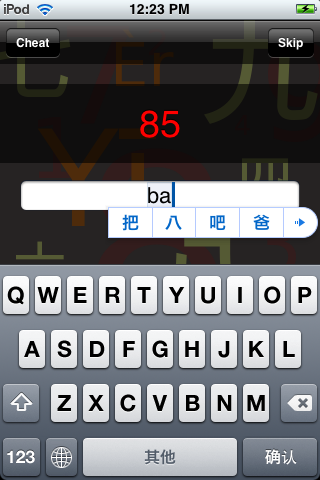
Finally, Listening Practice provides audio of a native Chinese speaker for the numbers 0-100. After 100, LianXiShu combines numbers to build numbers up to over 2 billion. The cadence and a few of the tones on these numbers aren’t perfect (yi changes tones depending on the subsequent tone), but it’s still good practice at understanding bigger numbers. Listening practice can also act as a quick conversion tool as it will show you Simplified Characters as you type in your answer.
Each of the 3 interfaces sports its own range so that you can limit your practice to what you want to learn.
If you are interested in helping test this learning application or another we have on the way, please register on the site and drop me an e-mail with your iPhone or iPod touch device ID.
Dictionary Search Performance
There have been a few notes in the reviews on the App Store about search times in DianHua Dictionary. One review noted that a search for “Football” and even “American Football” took far too long. On the recently released v1.3.2, a search for “football” on my 1st generation iPhone took just a little over 1 second. A search for “American Football” was nearly immediate. Using a previous version, it would not surprise me in the least to see the same search take 3-5 seconds for “Football” and considerably longer for “American Football”. The main point is that I’m constantly working on improving performance.
The interesting thing I discovered in developing v1.3.2 is that there is a distinct difference between achieving a performance gain in a test environment versus what happens in the native iPhone environment. To further explain, I changed the English and Pinyin indexing along with the search queries for v1.3.2. In testing those changes on my development Mac, I achieved dramatic performance improvements on most queries, registering gains in the 70-80% range on many of my tests. When I tested the new indexing and queries on an iPod touch, the improvements were much less pronounced. By some crude measurements, the gains were little better than 10-20% in most cases.
The other issues at work in further performance improvements is that there is always a trade-off. It probably hasn’t gone unnoticed that each release of DianHua Dictionary has nearly doubled in size. The more I do to index and arrange the data to increase search speed, the more space that data will consume.
As for v1.3.2, here are some hints for improving search speed:
- If you are searching for a verb in English, search for the infinitive. So instead of searching for “eat”, search for “to eat”. This will help the query hit on an exact match instead of a near match.
- In general, the more information you provide, the faster the search will run. This is especially important with Pinyin. Instead of searching for “hao3”, you would be better off searching for “ni3 hao3” or “hen3 hao3”.
- If you are searching in Pinyin, include the tone numbers. The Pinyin data is not indexed well for toneless searching, and the searches will take almost double the amount of time as they would if they included tones.
- Simplified and Traditional character searches are slow, but the more characters you provide, the faster they will run.
I’m still considering switching the default search results to an exact match on all searches, but I’m hesitant to do this because I know in my own use I rarely want an exact search. However, I am open to suggestions.
If you have any criticisms or recommendations for DianHua Dictionary, please feel free to contact me through comments on the blog or support inquiries on the site.
DianHua Dictionary v1.3.2 Now Available
DianHua Dictionary v1.3.2 is now available on the iTunes App Store. The new version corrects several minor bugs not the least of which was incorrect labeling of Chinese characters on the definition page. More importantly, though, search results have been improved significantly. Thes latest release also includes a few new Settings and a large Chinese character viewer.
DianHua Dictionary v1.3.2 Awaiting Approval
DianHua Dictionary v1.3.2 has been submitted to Apple for approval. Here are the release notes provided to Apple:
- Traditional and Simplified labels on the Definition pages have been corrected.
- Improved search speed and result quality in all kinds of searches.
- Added toneless Pinyin searching so you can now search for “ci dian” instead of “ci2 dian3” if you’re unsure of the tones.
- Added settings to allow Simplified and Traditional characters to be turned off and on independently.
- Added a setting for the default search screen, English or Chinese.
- Implemented an enlarged view of Chinese characters accessible by touching the characters on the Definition page.
A Quick Look at v1.3
The past month has been a busy one for me. I expected to release v1.3 a couple of weeks ago, but it has taken until today to put together a suitable beta. In that time, there have been two main complaints about the current version of DianHua Dictionary, v1.2.1:
- Simplified and Traditional characters swapped on the definition page.
- Simple searches like “eat” and “return home” not yielding appropriate results.
Both of these problems have been fixed, but there is a limit to what can be done with the search results given the content of CC-CEDICT today. For instance, if you search for “eat”. You will not get “chī” in the first page of results. However, if you search for “to eat”, you will get “chī” in the first page of results. Additionally, a search for “to eat” is nearly immediate whereas a search for “eat” takes a little more time.
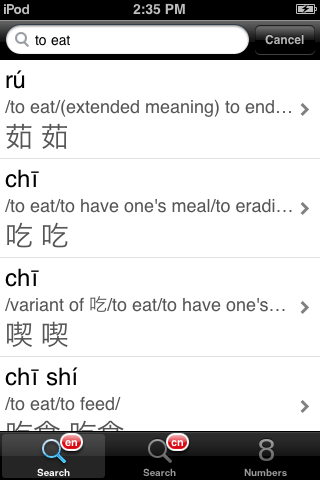
The same changes that have been applied to English searches have also been applied to toned Pinyin searches. Toneless Pinyin searching has also been added, but the performance is significantly less than that of toned searches.
I’ve also added 3 new settings to the application:

You can now set a default search screen and turn simplified and traditional character displays on and off.
The final significant change planned for v1.3 is an interface that allows you to inspect simplified and traditional characters more closely. The image below demonstrates the new interface accessed by touching the traditional or simplified fields on the dictionary definition page.
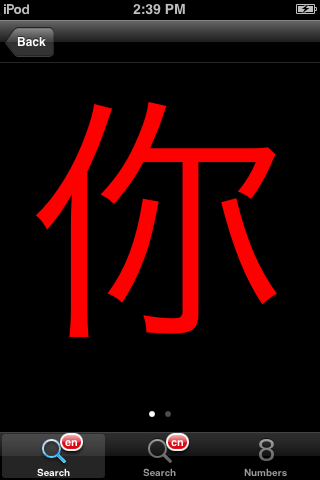
As you can see, the characters are displayed in a large font with one character per page. Like Apple’s Weather application, you swipe side to side to change characters.
I will soon be uploading a beta to the site for those who have volunteered to test. If you have not contacted me but are interested, please post in the comments and leave a good e-mail address.
Version 1.2.1 Through Review
This is a bit of a double-edged sword for me. Version 1.2.1 was identified as Ready for Sale by Apple today, but the binary they reviewed includes a labeling mistake on the dictionary entry page. In the version that will likely show up this evening, the labels “Simplified” and “Traditional” are swapped. Other than what amounts to a typo, DianHua Dictionary v1.2.1 has been working significantly better in testing than v1.2.
If you are interested in helping test beta versions of DianHua Dictionary, please let me know. Installation is far from straightforward, and the beta and AppStore versions won’t co-exist peacefully. That said, I could certainly use a few extra sets of eyes as new features are implemented.
Special thanks to the commenters on this site, the reviewers on iTunes, and especially the existing beta testers. All of the feedback and effort has been very helpful.